How to dynamically sync my Xero Sales and Purchase Invoices and Credit Notes to Excel and PowerBi
May 25, 2023
This tutorial will guide you through the process of dynamically syncing your Xero sales and purchase invoices as well as credit notes to Excel and PowerBI.
Watch the video (below) - it gives a deeper insight into the process:
How to use the invoices and credit notes in point within Accounting.BI to link Xero directly to your spreadsheet or PowerBi report
Please follow the steps outlined below:
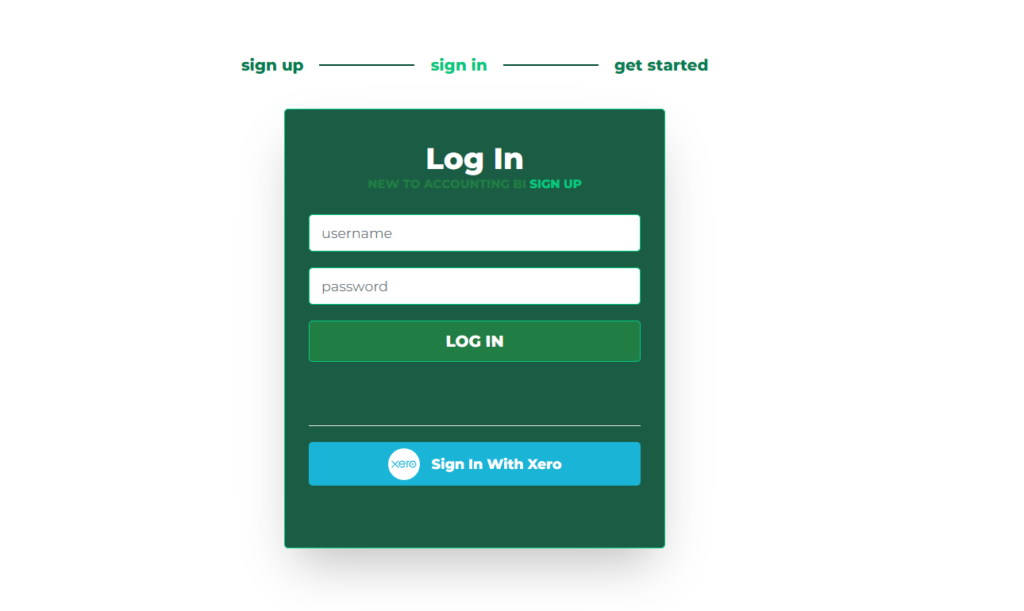
Start by accessing the Accounting.BI platform, log into your account or sign up as a new user.
0:23 Setting up Queries for Invoices Report
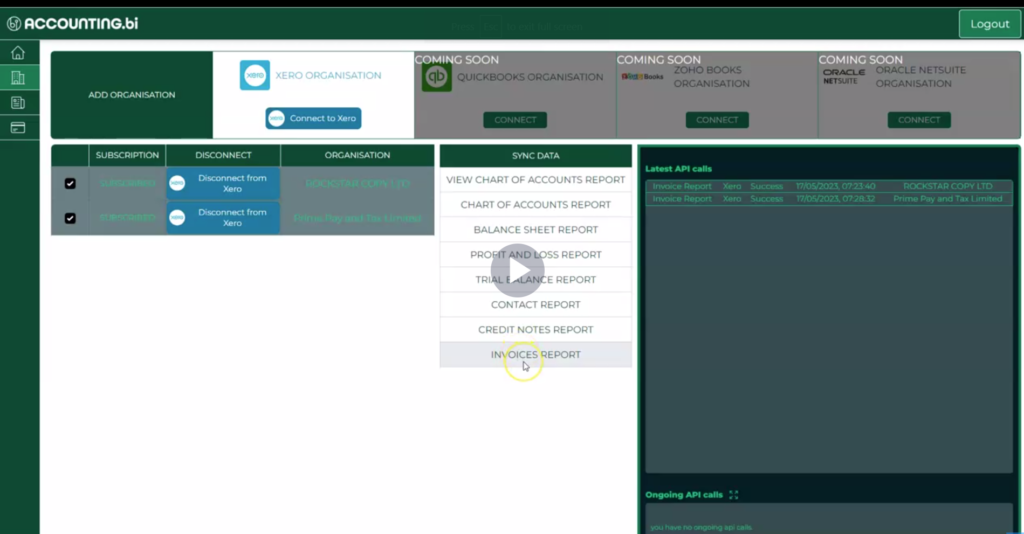
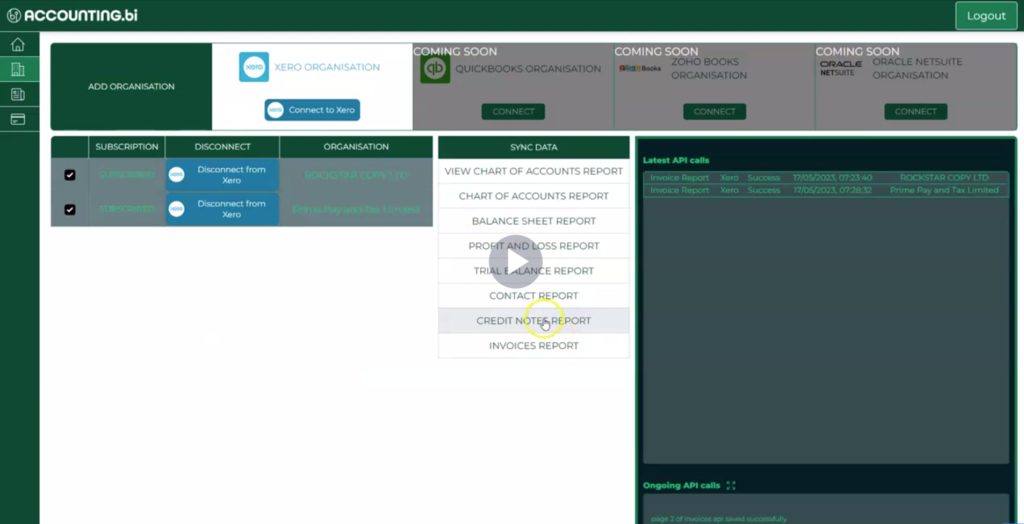
•Take note of the two reports: Credit Notes Report and Invoices Report.
•Set the queries individually, starting with the Invoices Report.
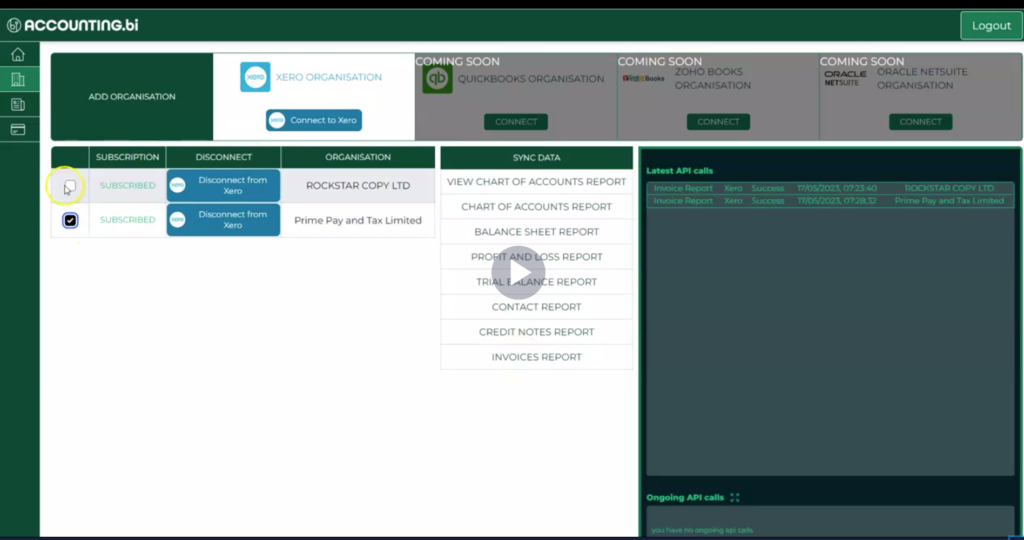
•Select the organization for which you want to retrieve data.
Please also note that you can select and make the query for multiple organisations at the same time.
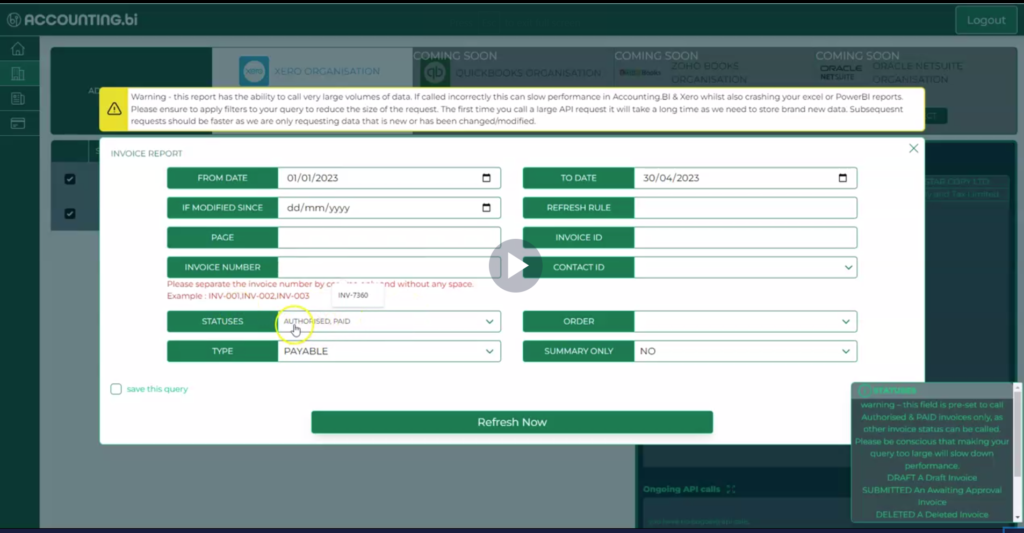
•Be specific in your request to narrow down the data. The queries can be reasonably large, so be specific as possible when making a request. The fist time you make this request, it may be that the system has to call a lot of data out of Xero, so it may take a long time. However, the second time you make the request, we'll only be taking changes to the Xero data so the API request will be much faster.
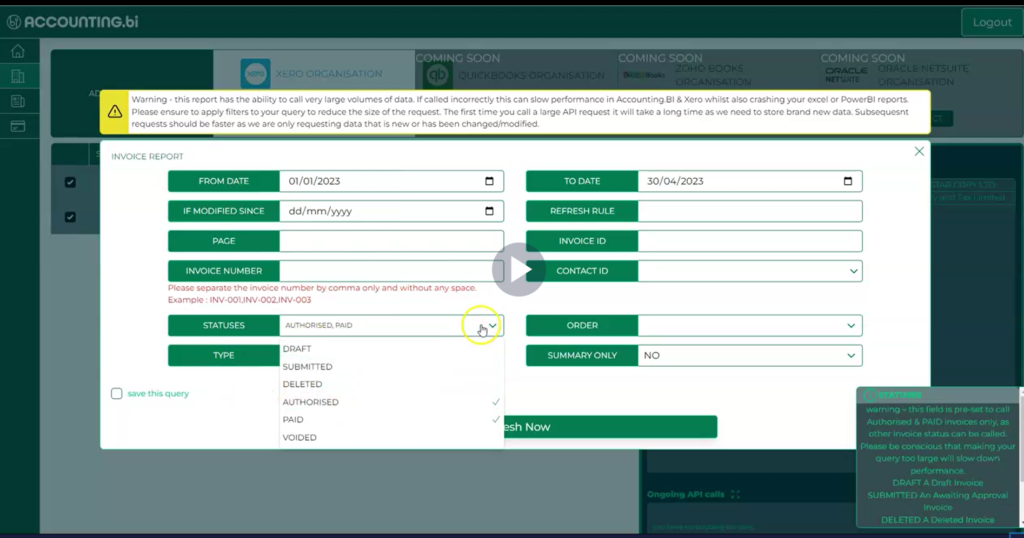
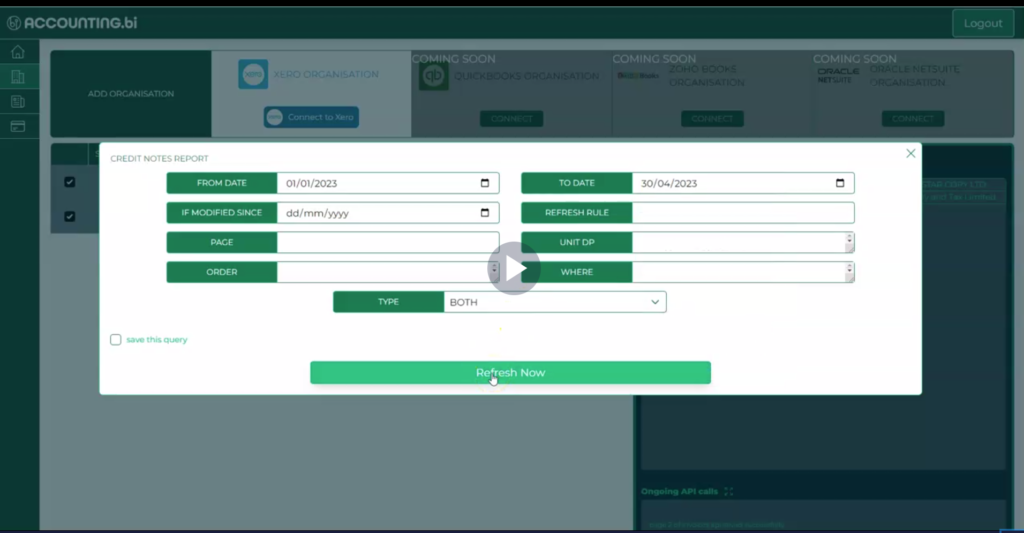
•Example: Retrieve all invoices with the status "authorized and paid" from January 1, 2023, to the end of April 2023.
You can include other statuses in the drop down menu but in this example, we're just going to use the default values.
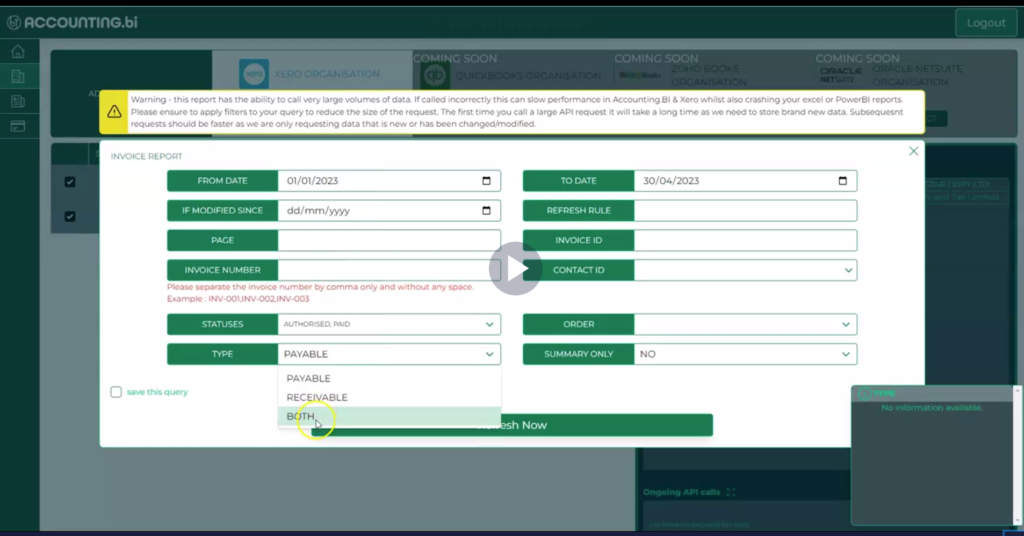
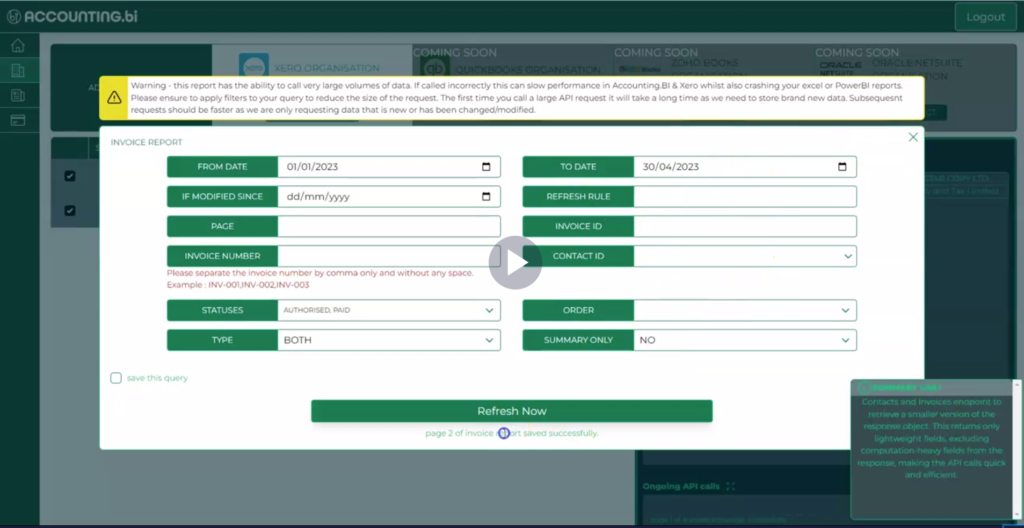
Next, we take invoices from 'both' the accounts receivable and accounts payable parts of Xero, then press 'Refresh Now' to initiate the API request.
Since this is a large API request, it may take a long time to load, as shown below.
2. 1:35 Monitoring API Call Progress
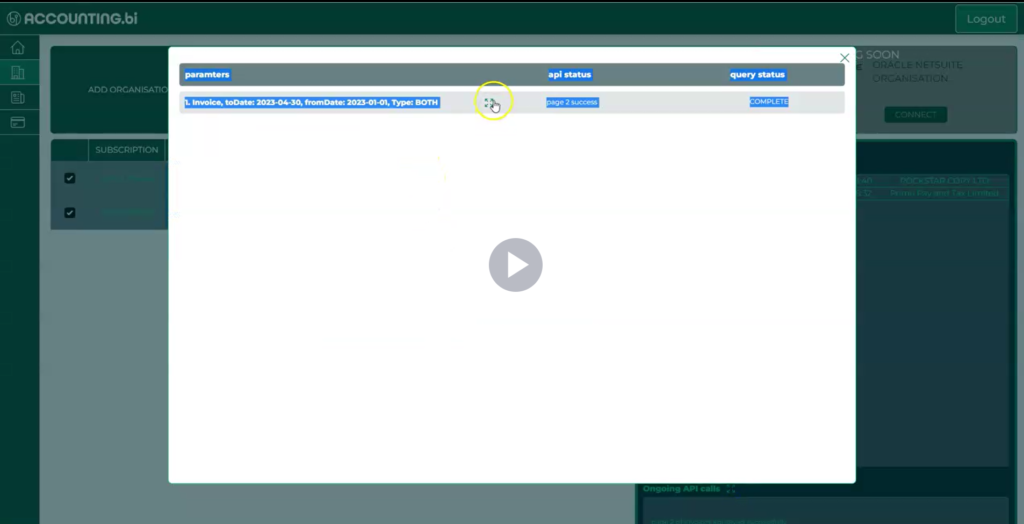
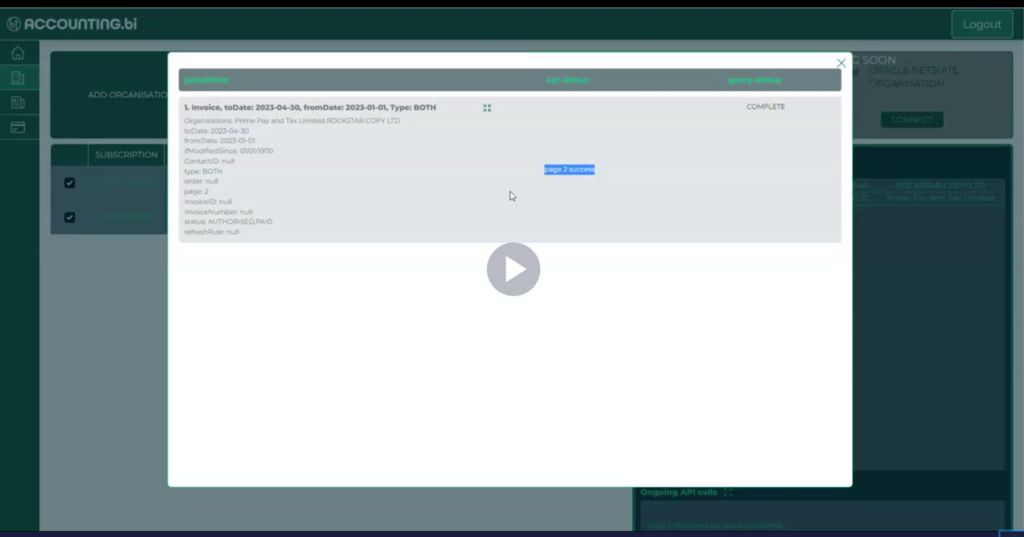
•Access the API interface and click on "Ongoing API call log."
•Monitor the progress of the API request.
•The initial request may take longer, but subsequent requests will be faster.
The reason why the API request was quite large is because we'd already called the API request previously, where we called over a hundred API pages and in this instance it's only called two because there's only been changes to a very limited amount of data.
3. 1:59 Setting up Queries for Credit Notes Report
•Repeat the process for the Credit Notes Report.
•Make a call request for credit notes from January 1 to the end of April.
•Select both accounts receivable and accounts payable.
•Press "Refresh Now" to initiate the API request.
4. 2:27 Connecting Invoices and Credit Notes
Access the "My Bearer Token" section within the Accounting.BI system.
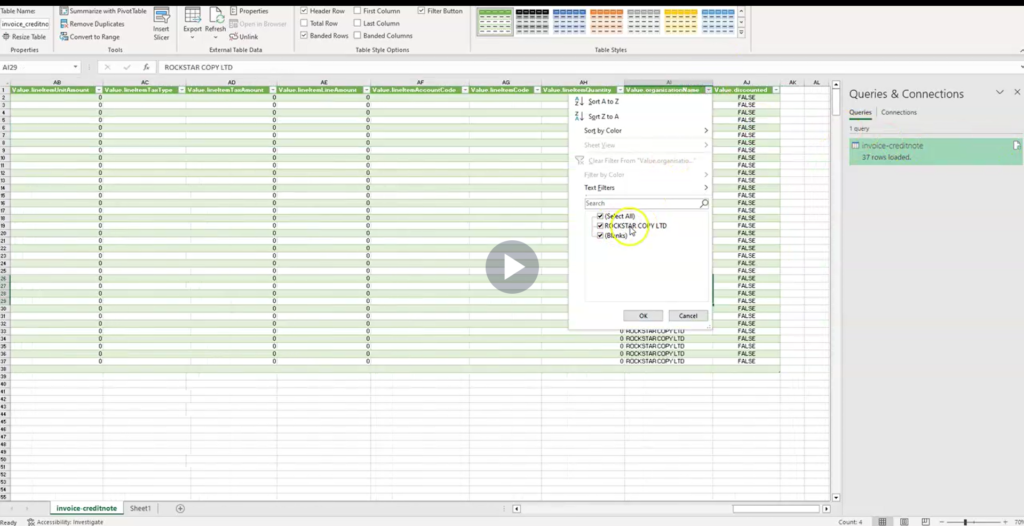
Connect the invoice and credit notes using Power BI's "Queries and Connection" process.
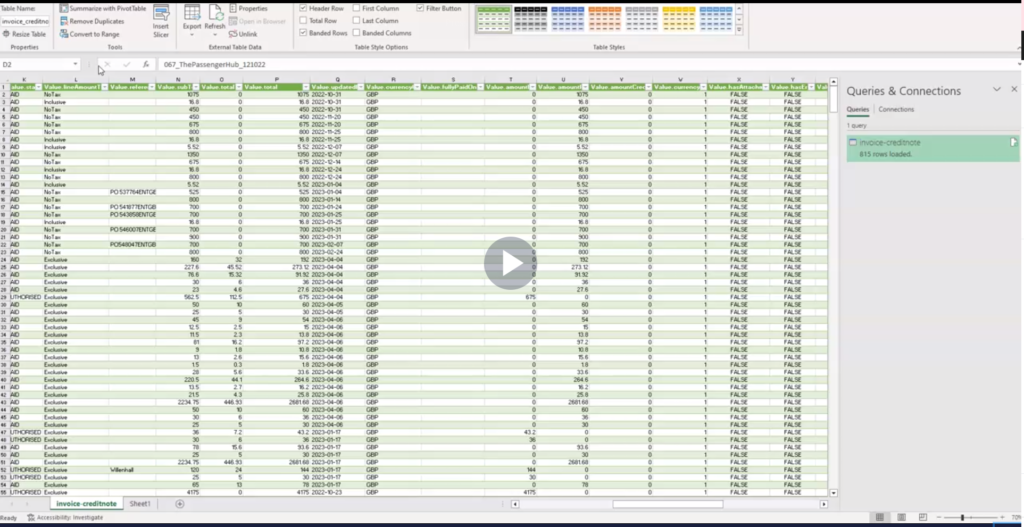
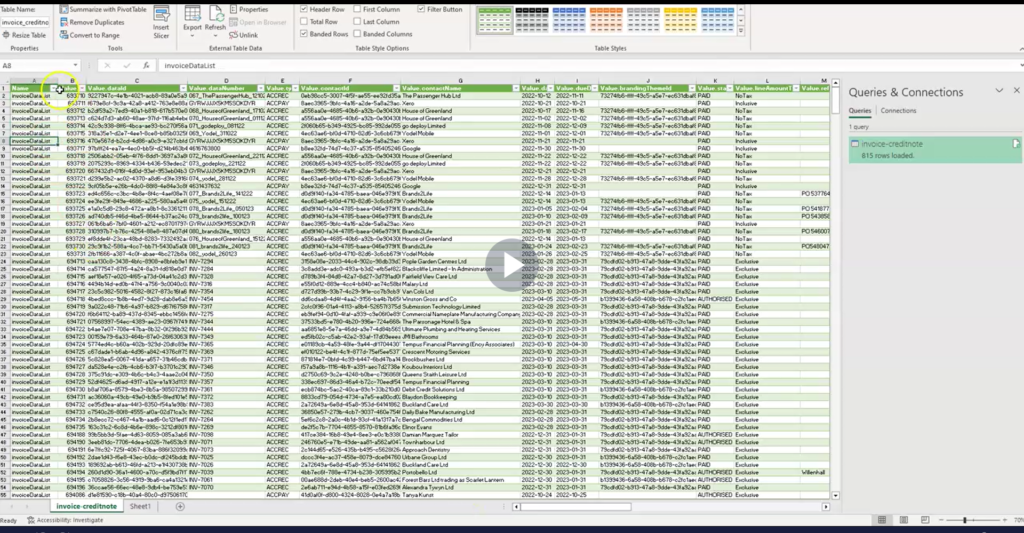
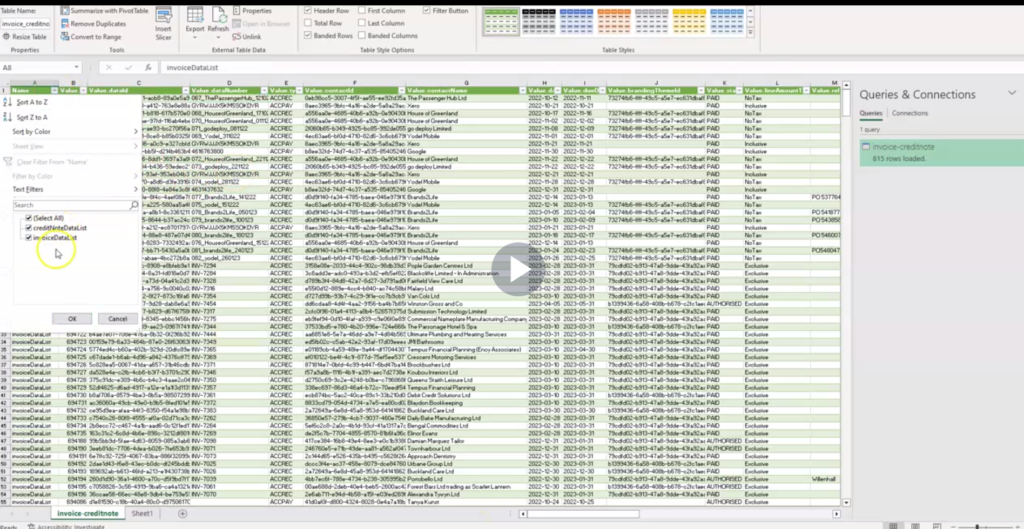
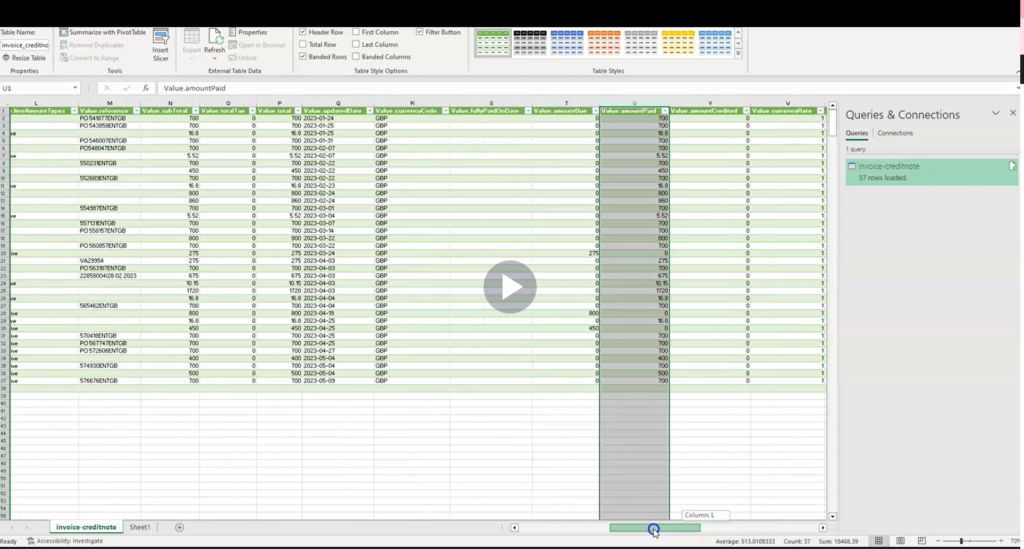
Once you have that connected, you'll see the invoice data list with all the credit notes and invoices,
5. 2:50 Refreshing Data
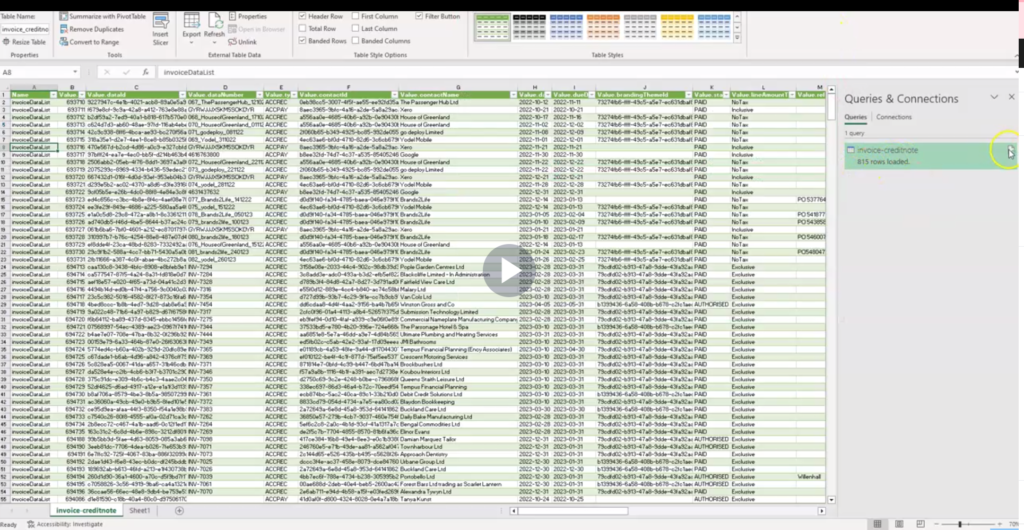
•Refresh your data by clicking on the document icon under "Queries & Connections."
•The new data will include invoices and credit notes from the API requests.
•Data can be across multiple companies, and syncing may be required.
You'll notice that it can be across multiple companies, but in this instance we only called one company, but there could be scenarios whereby we've called 50 companies at the same time, so we need to sync this data.
6. 3:15 Analyzing and Visualizing Financial Data
•Once connected, you can analyze and visualize your Xero sales and purchase invoices and credit notes in Excel and Power BI.
•The data will be displayed at the line item level, allowing for subtotal calculations.
•Gain insights and match the behavior obtained from the Xero interface.
By following these steps, you can dynamically sync your Xero sales and purchase invoices and credit notes to Excel and Power BI, allowing you to analyze and visualize your financial data effectively.
As an accountant, you may find yourself referring to multiple sources to track the performance of your client’s cash flow, profitability, business trends and even bookkeeping cycle. What if you could access those results and comparisons automatically refreshed, on-demand, from your tablet, smartphone, PC, or even wearable device? Business intelligence and data visualisation systems can provide accountants with – the critical data and organisation summary in a custom format in one (or more) visuals or a dashboard. One of these powerful business intelligence tools is PowerBI.
DAX (Data Analysis Expressions) is a formula expression language developed by Microsoft to interact with data in different analysis services and visualisation tools platforms like Power BI, PowerPivot and SSAS tabular models. DAX can seem familiar to competent excel users as the language uses similar formulas and expressions.
This video and article provide steps for connecting Xero to PowerBi through AccountingBi. It assumes that you've already pulled the Xero API from accounting BI for your various reports.