Preparation
Ensure you do the following before you start the process:
- Connect your Xero account to AccountingBi.
- Query Balance sheet Reports and Profit and Loss reports from Xero via AccountingBi.
This process applies to Microsoft Excel 2016, if you use another version of Excel, click here instead.
Steps to connecting Microsoft Excel 2016 to Xero
Please follow these steps:
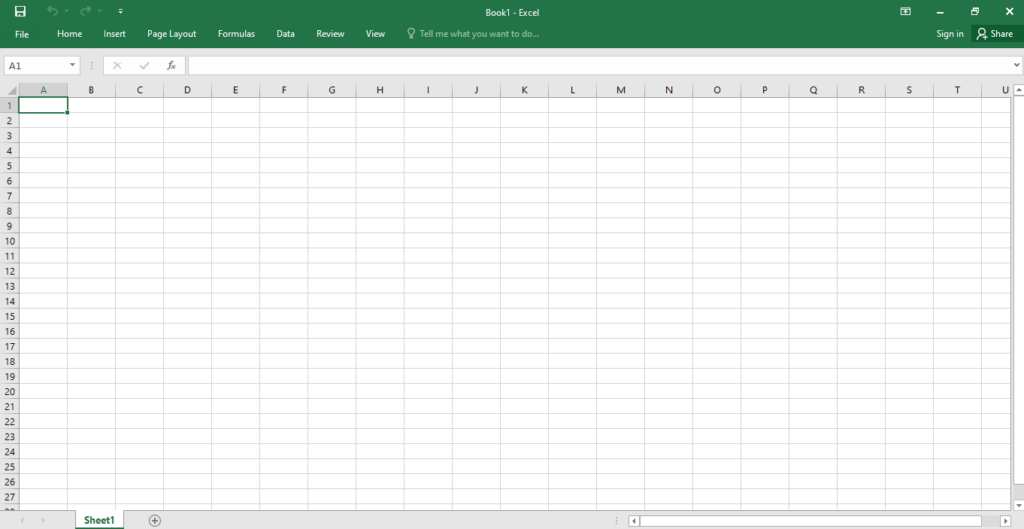
- Start Microsoft Excel 2016 to generate a blank workbook.
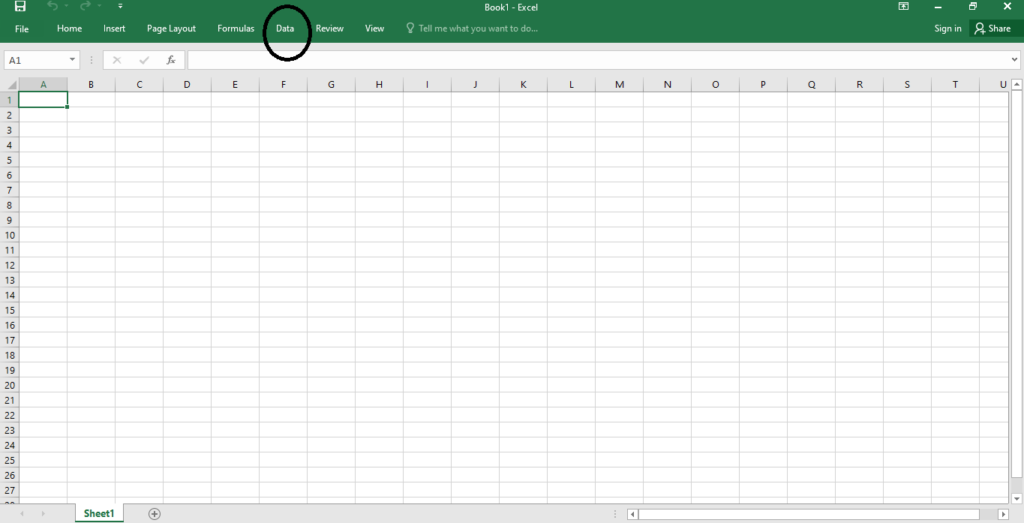
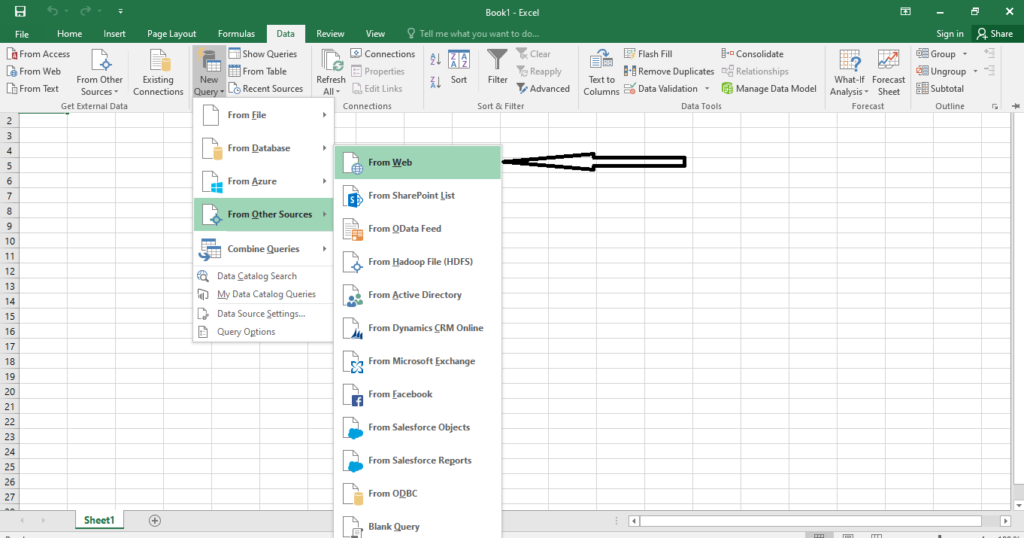
- Select New Query from the drop-down menu.
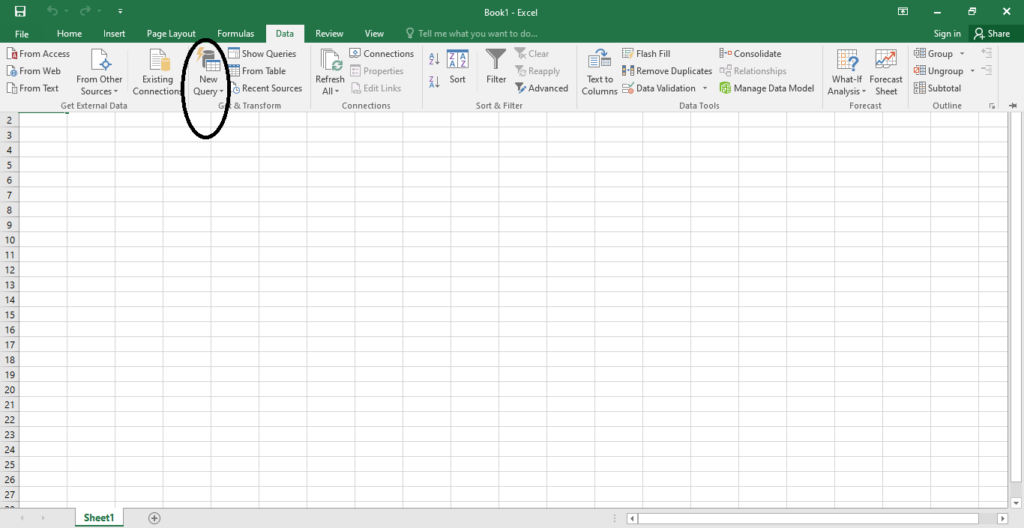
- Choose From Other Sources.
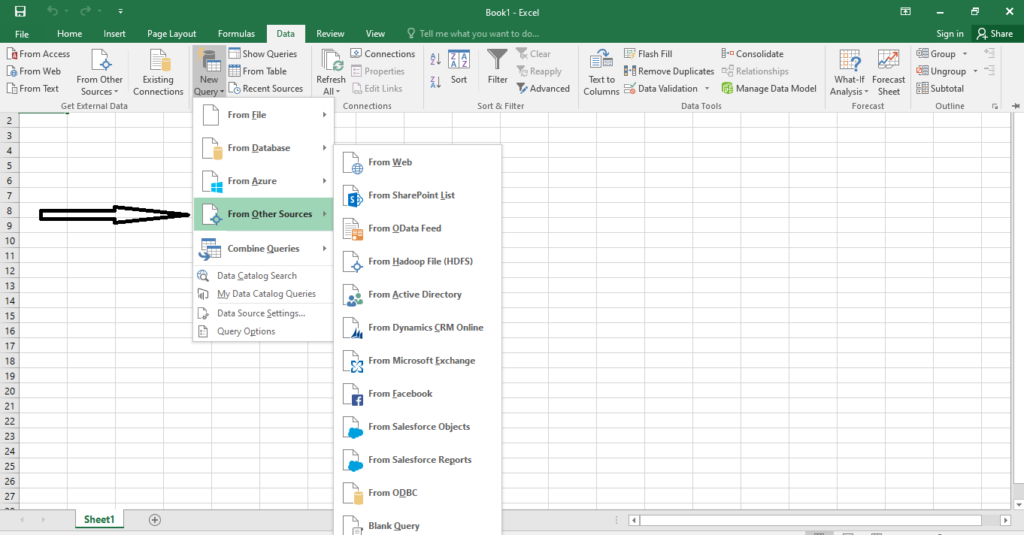
- Select From Web in the succeeding drop-down menu.
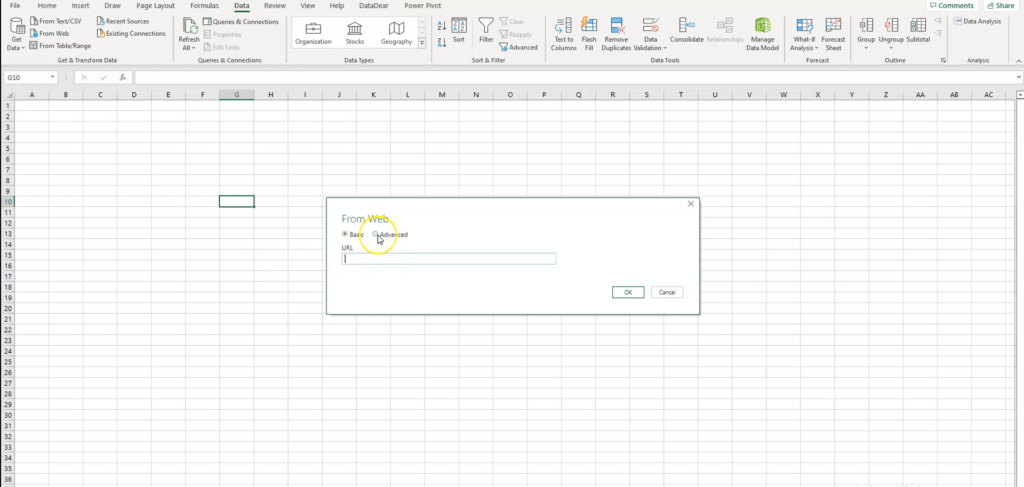
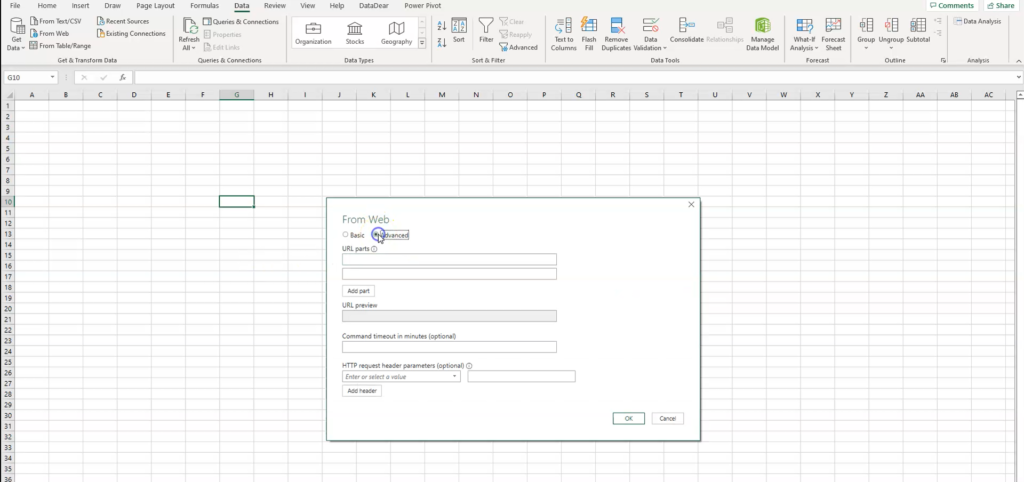
- From the popup window that appears, check the Advanced button. When you select Advanced radio button, a dialog box will appear as below.
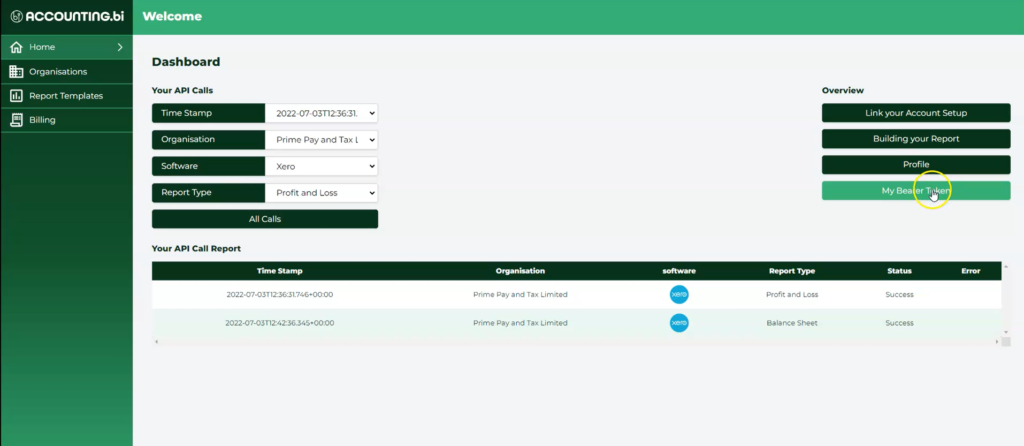
- Copy the relevant API URL depending on what you want - Profit and Loss and Balance Sheet or Chart Of Accounts API URLs.
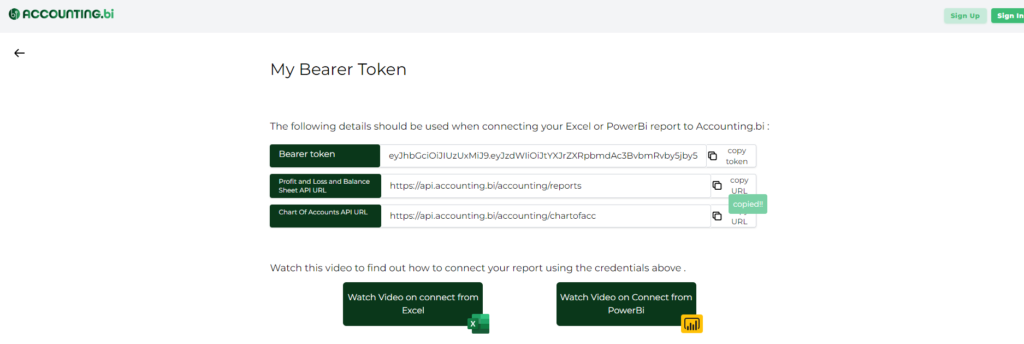
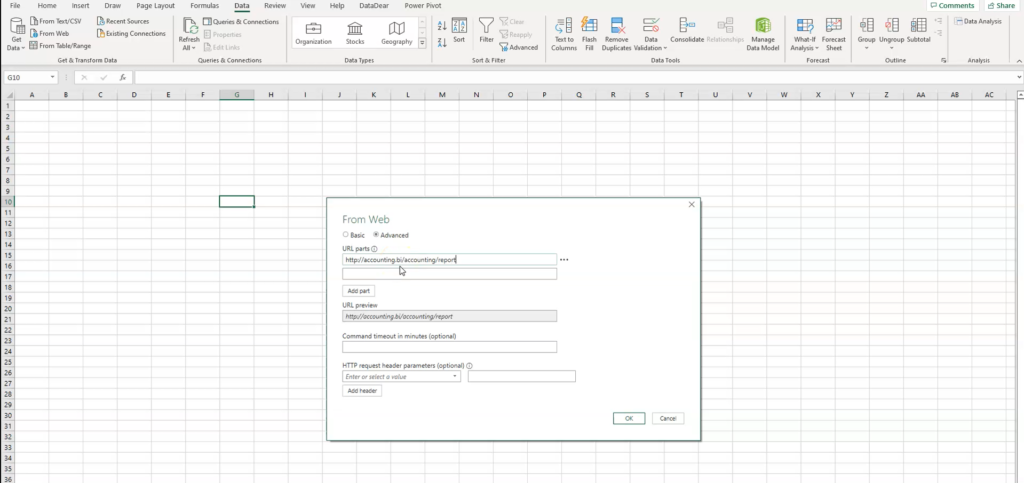
- Go back to your Microsoft Excel worksheet and paste your URL into the URL parts field.
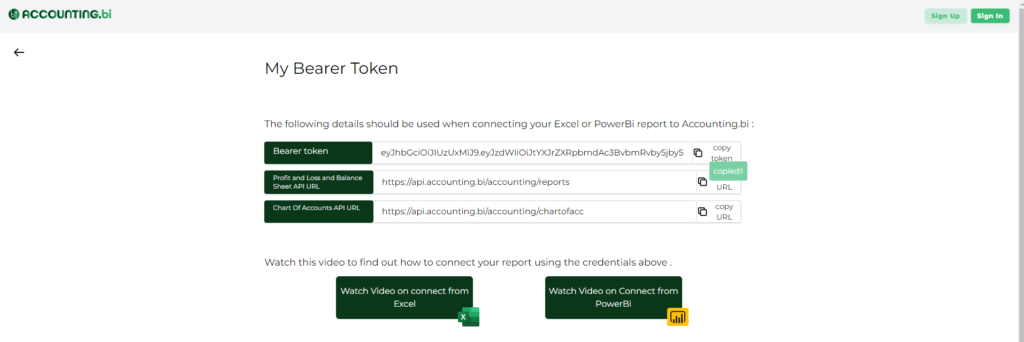
- Head back to your AccountingBi Bearer token page. Copy the Bearer token.
- Paste your token on the box on the right under the HTTP Request Header Parameters section in your Excel worksheet.
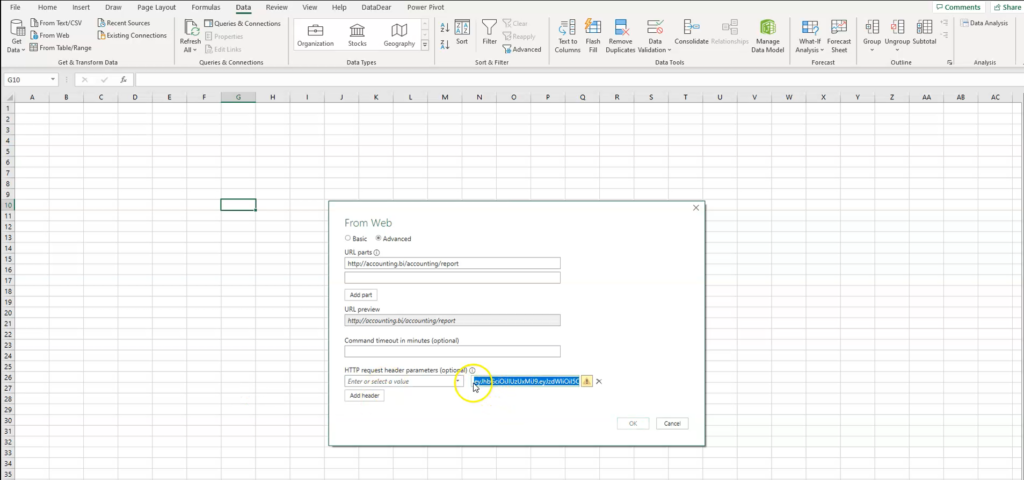
- Navigate to the front part of the pasted URL and type the word Bearer (the letter B must be capitalised). You should then insert a space between the word and the token URL.
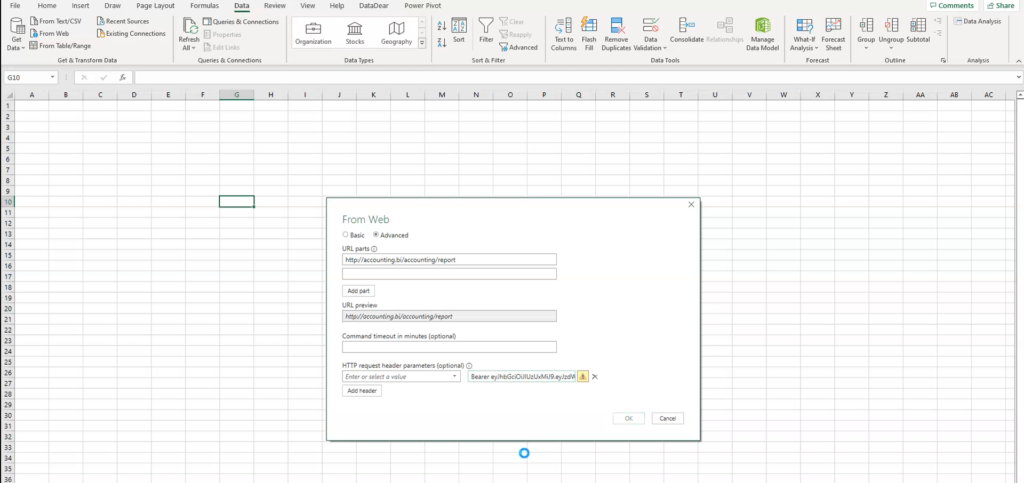
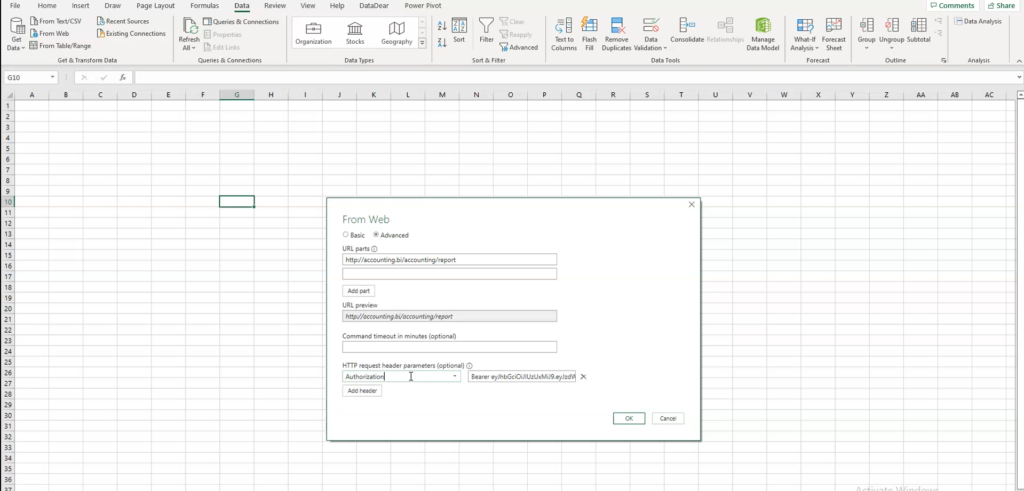
- Type the word Authorization (must be the US spelling) in the box on the left under the HTTP Request Header Parameters section.
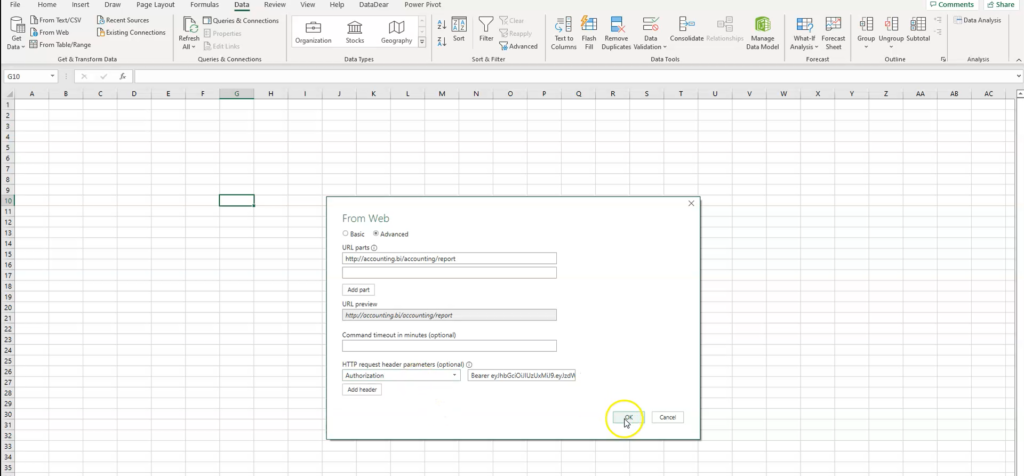
- Click Ok so that Microsoft Excel can request the AccountingBi API to start loading the data.
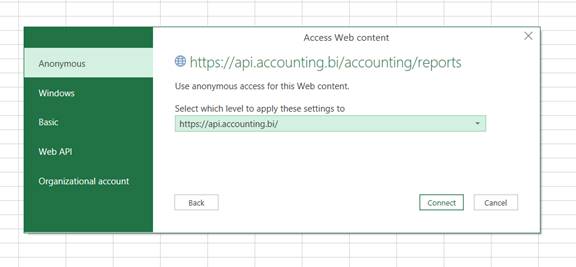
- An Access Web Content dialogue will appear on this page. Proceed with the Anonymous tab because you may get stuck at this stage if you put in the wrong login details. Click Connect.
- You will see all the reports you have already called from Xero through AccountingBi on this screen.
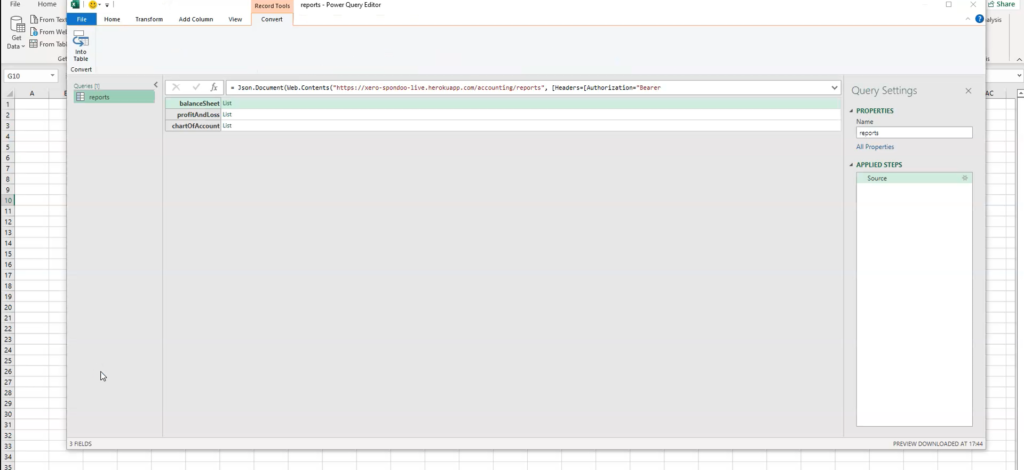
- Select the Into Table tab to convert your data to a table.
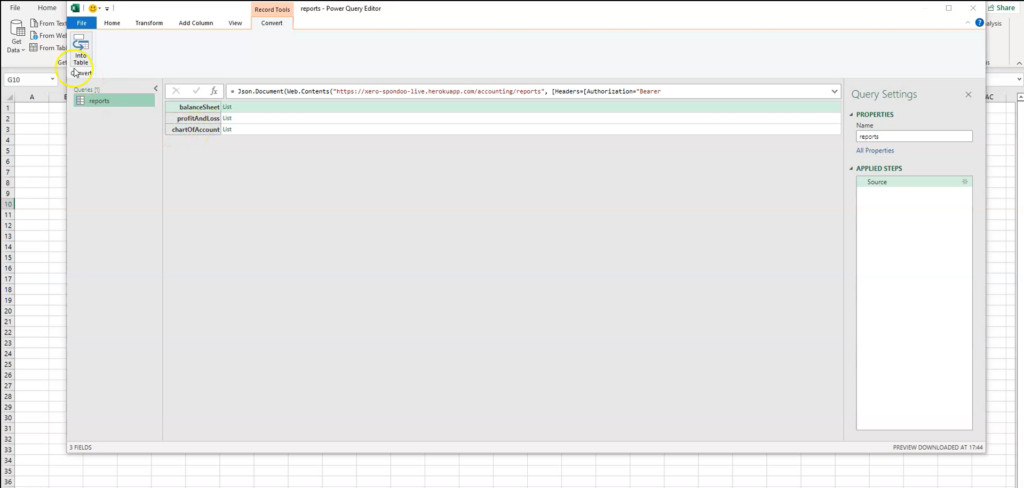
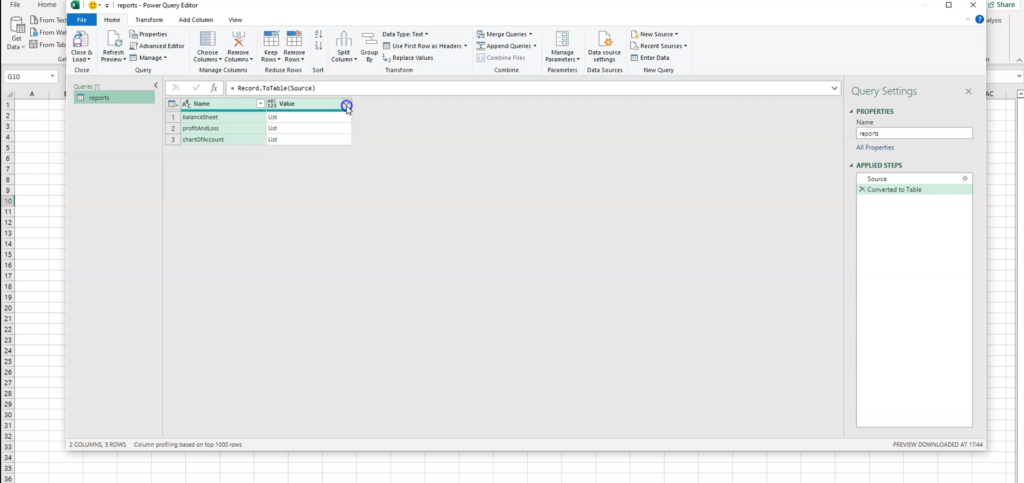
- Click the double-headed arrow in the reports window as shown below.
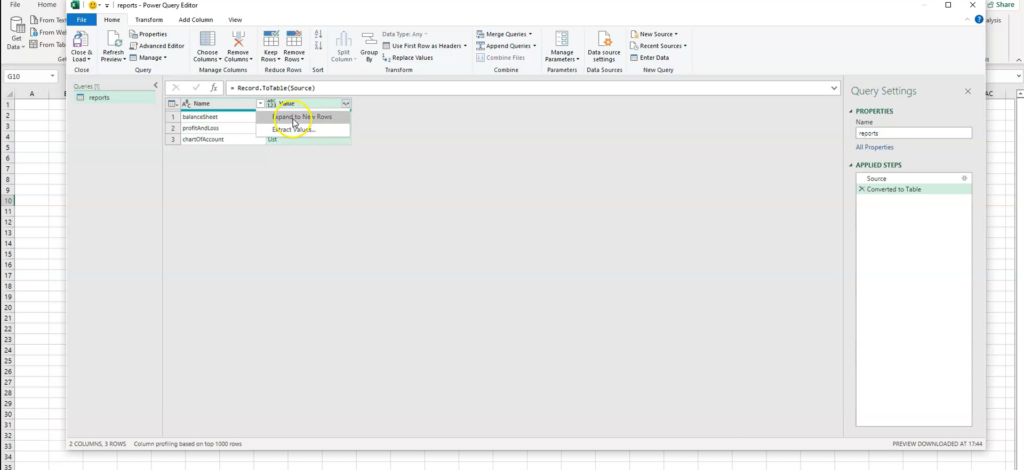
- Choose Expand to new rows from the dropdown menu.
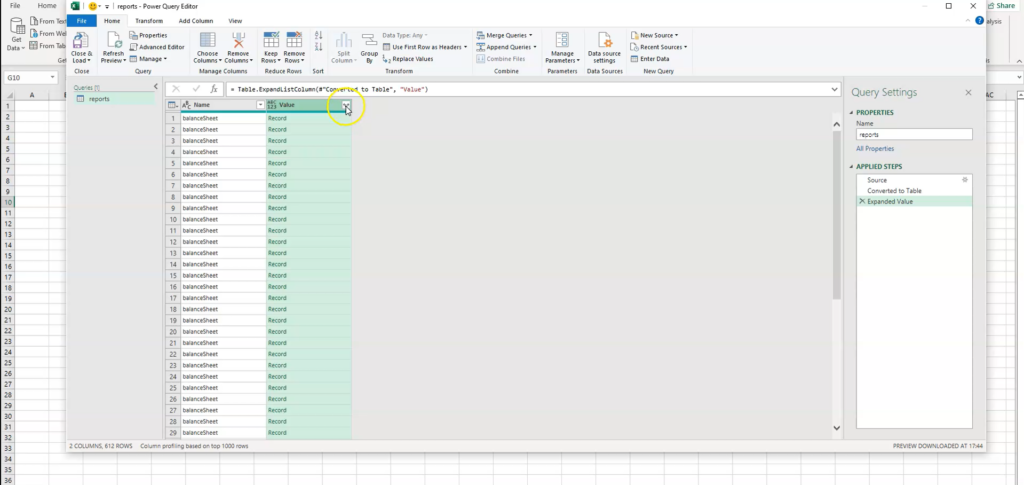
- Click the double-headed arrow (as shown below) to reveal your data columns.
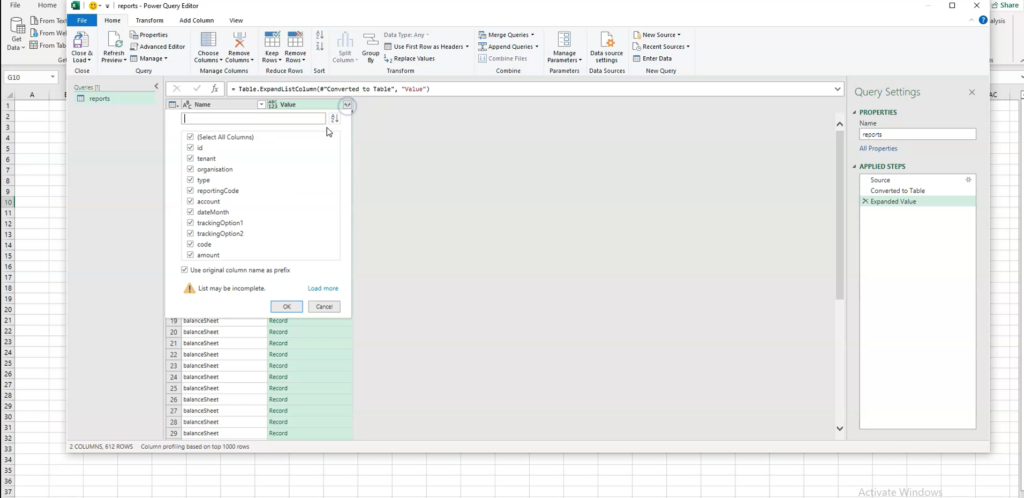
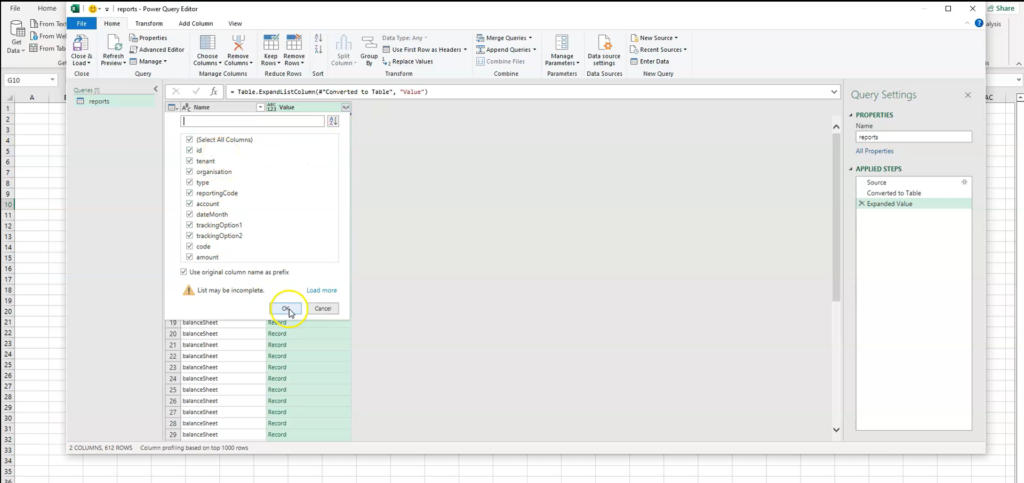
- Click Ok to load your data.
- Click the Close & Load pull-down menu and choose Close & load.
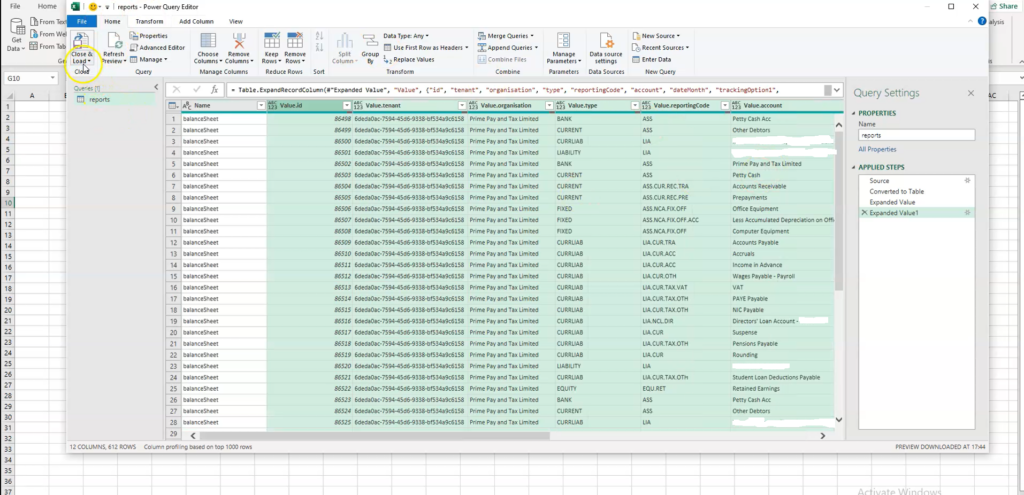
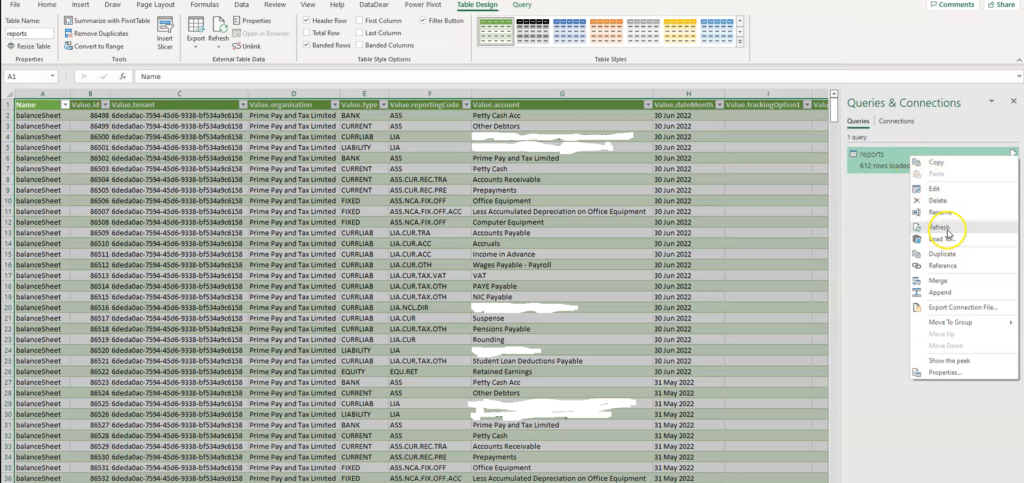
After the process, your data will be loaded into a new sheet in your Excel workbook. Whenever you have new data in Xero, you only need to refresh the reports tab on your workbook for the new information to reflect on your worksheet.
You can refresh your data by using any of the following methods:
- Just click the Document icon on your report under Queries & Connections to refresh your data.
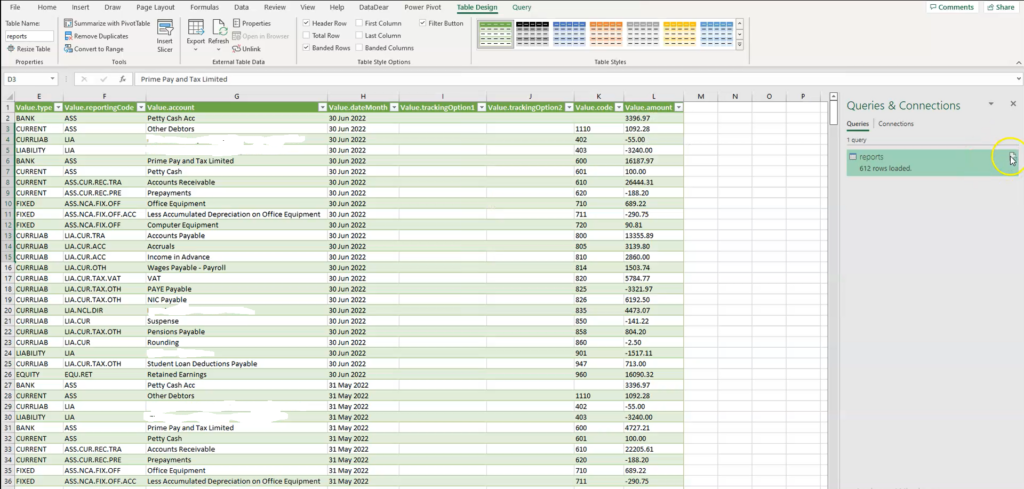
- Right-click the report tab under Queries & Connections and select Refresh from the succeeding pull-down menu.
If your excel version is later than 2016, click here instead. If you have any questions or concerns, please contact us.