This guide explains how to connect Microsoft Excel to your Xero accounting software using AccountingBi.
There are three methods available: Excel Add-in, Excel Power Query, and a limited option for specific reports (Journals) through contacting AccountingBi support.
Excel Add-in, Excel Power Query, and a limited option for specific reports (Journals) through contacting AccountingBi support.
This method offers two options: working with a blank Excel file or using a pre-built template.
a. Blank File
Installing the Add-in: Individual users can install the AccountingBi add-in directly into your Excel desktop and Excel Web. Here’s how to:
Access the "Add-ins" section under the "Home" tab, select "+More Add-ins," search for "Accounting.bi," and install the add-in into your system.

If you're part of an organization, your Microsoft Admin will need to install the Accounting.bi Add-In and grant you access.
The process involves your administrator adding the add-in through the admin center and then individual users accessing it within their Excel application.
Active Subscription:
If you possess an active subscription to Accounting.BI then follow this third step. If not, then first set up your account in AccountingBi via this URL and take the Subscription with the given plans.
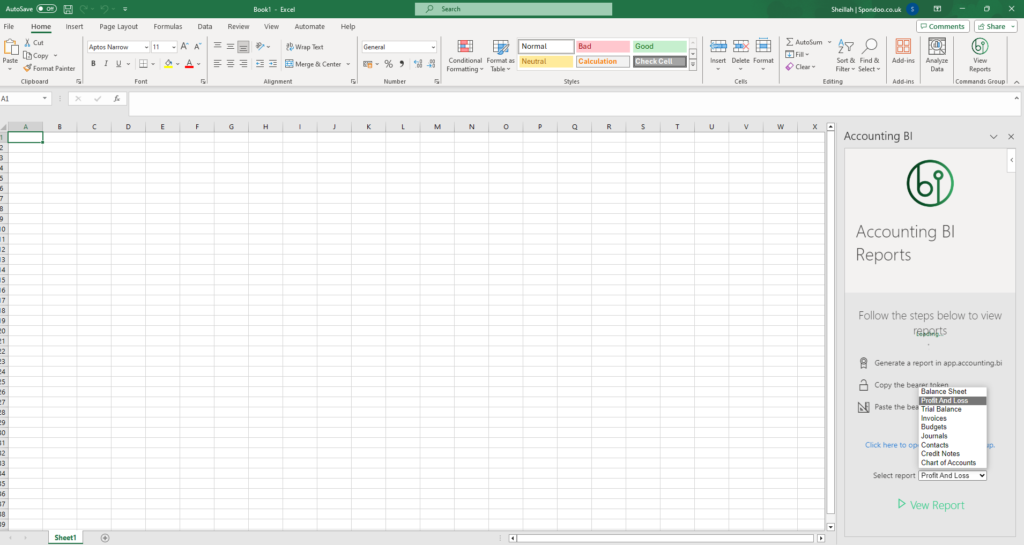
4.When you see the "Click here for bearer token popup", paste the bearer token, and save the changes. Then click on "View Reports" to display the report in Excel.

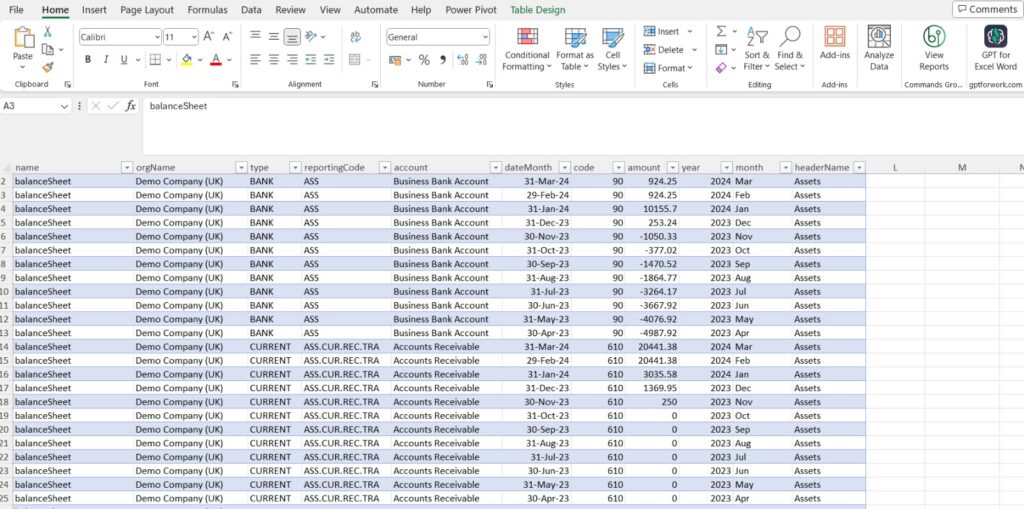
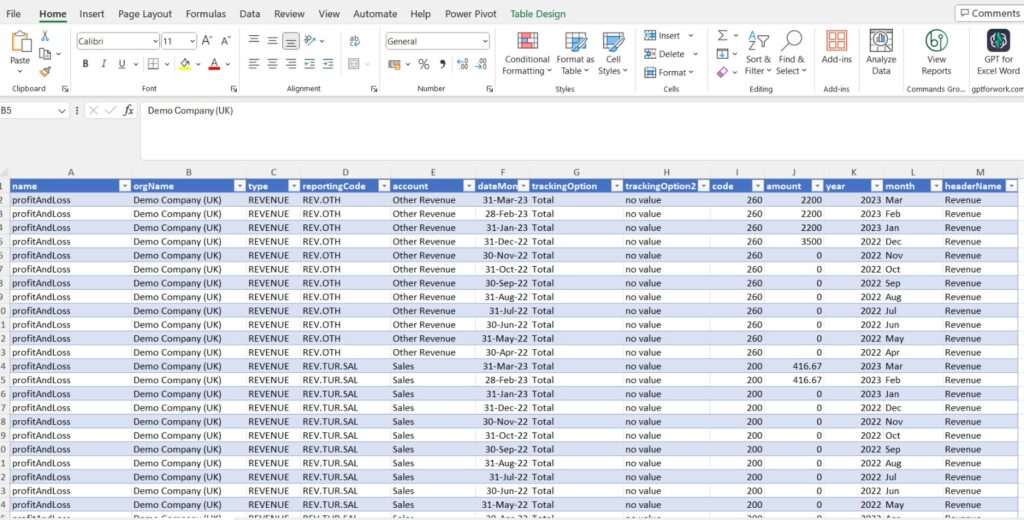
5.Viewing your Reports in Excel
b. Templates
Access the templates associated with the Excel add-in through the following URL: https://accounting.bi/template-dashboards/
Choose the template that best suits your needs & requirements then download it.
To integrate the Accounting.bi add-in into your Excel desktop and web versions, follow these steps:
Go to the "Home" tab in Excel, click on the "Add-ins", select "+More Add-ins," search for "Accounting.bi,". Locate the add-in and install it 0n your system.
If you belong to an organisation, the administrator for the Microsoft Admin Centre might need to install the Accounting.bi add-in and grant you access. Contact your IT department for assistance.
If you already have an active subscription accessible at https://app.accounting.bi/, proceed to step 5 (data verification).
If not then first set up your account in AccountingBi by given URL: https://accounting.bi/tips/how-to-link-your-account-and-setup-acountingbi and choose a subscription plan that meets your needs.
Now having downloaded your reports, installed the add-in, and set up your account, (if necessary), navigate to both the different endpoints: the Balance Sheet Reports and Profit and Loss reports sections to verify the accuracy of the retrieved data.
For further assistance, please contact our support team at: support@accounting.bi.

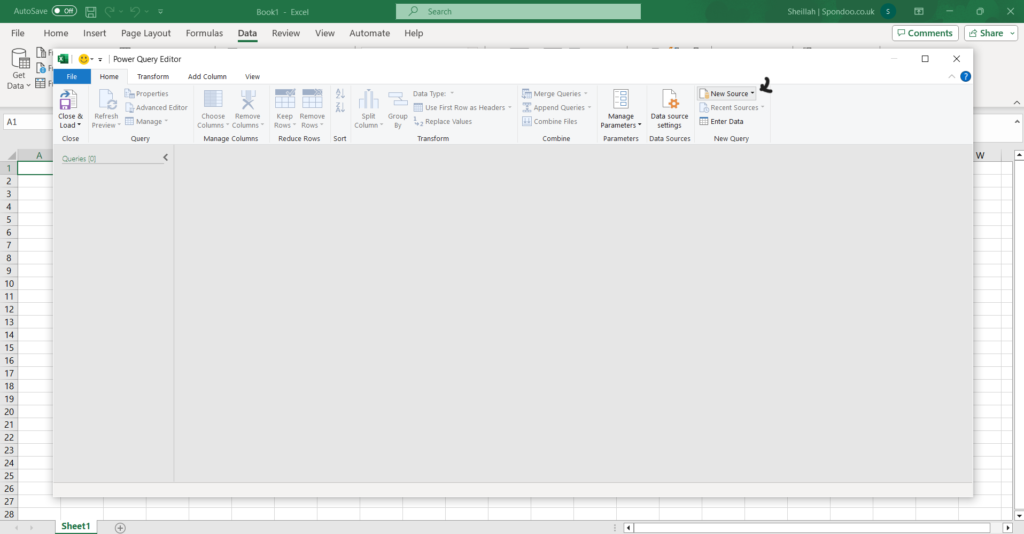
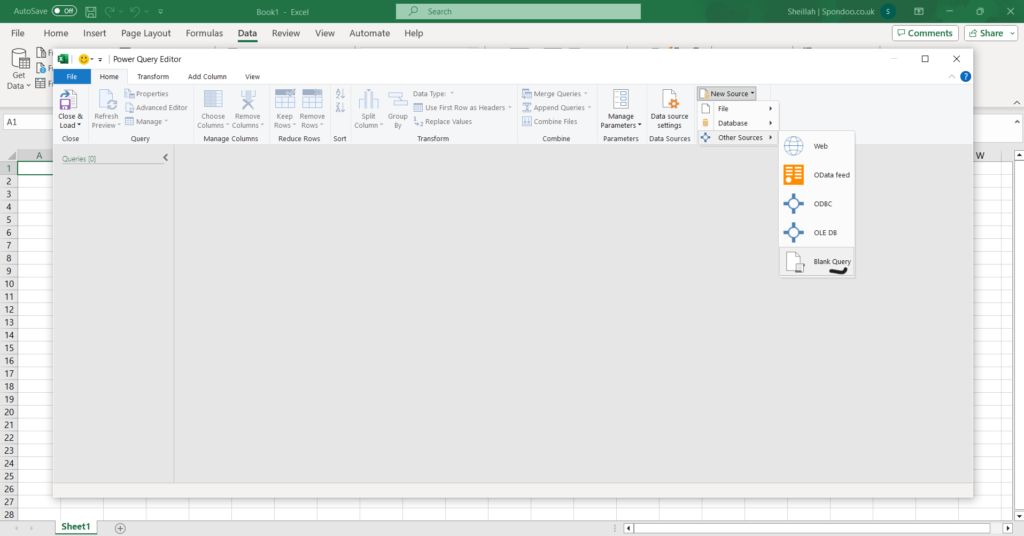

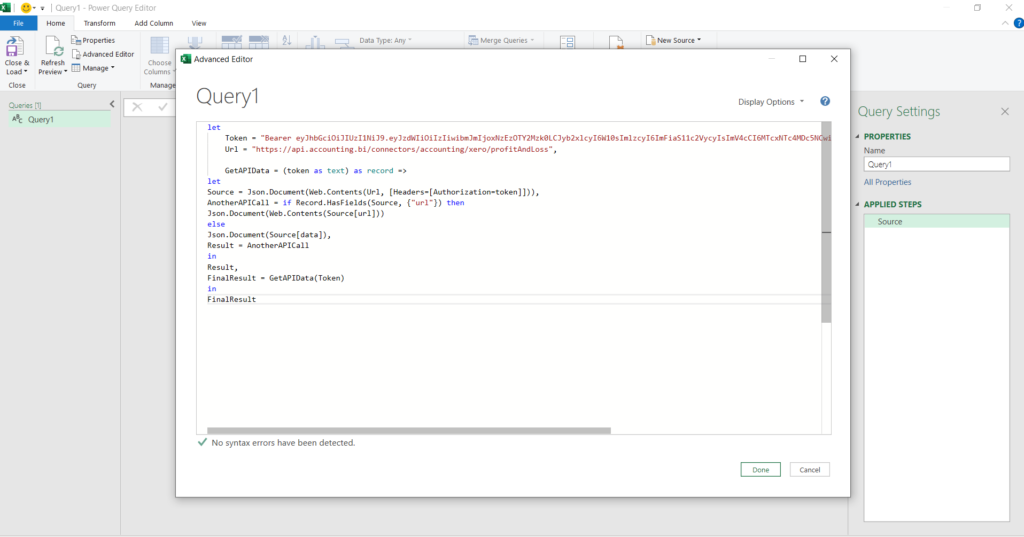
Token = "Bearer (Paste the Bearer Token here)",
Url = "(Paste the URL Here)",
GetAPIData = (token as text) as record =>
Let
Source = Json.Document(Web.Contents(Url, [Headers=[Authorization=token]])),
AnotherAPICall = if Record.HasFields(Source, {"url"}) then
Json.Document(Web.Contents(Source[url]))
else
Json.Document(Source[data]),
Result = AnotherAPICall
in
Result,
FinalResult = GetAPIData(Token)
in
FinalResult


b. Using Templates:
Excel templates with pre-built web connections compatible with Power Query are available at this URL: accountingbi template dashboards
Like the add-in method, there are Excel templates with pre-built web connections compatible with Power Query.
To refresh pivot tables, go to the "Data" tab and click "Refresh All."
Please make sure to regularly refresh your reports, so that you can easily switch between the different types of reports, such as balance sheets or profit and loss statements.
Method 3: Excel Power Query (Limited Options):
Excel Power Query functionality is limited for Journals reports.
We recommend contacting us at support@accounting.bi for assistance connecting this report to your Excel.
By following these methods, you can leverage the power of AccountingBi to seamlessly connect your Xero accounting data with Microsoft Excel, enabling you to create insightful reports and streamline your financial analysis.