In this video and article, we explain how to install the AccountingBi Excel Add-in for your entire organisation if you're using Microsoft 365. The process involves your administrator adding the add-in through the admin center and then individual users accessing it within their Excel application.
You can either watch the video below or read our step-by-step guide.
Your administrator, the person who manages your organisation's Microsoft 365 settings, needs to log in to the Microsoft 365 Admin Center. This is the central hub for controlling various settings for your organisation's Microsoft 365 services.
Within the admin center, locate the section for "Integrated apps". Here, they can search for "AccountingBi" in the app store.
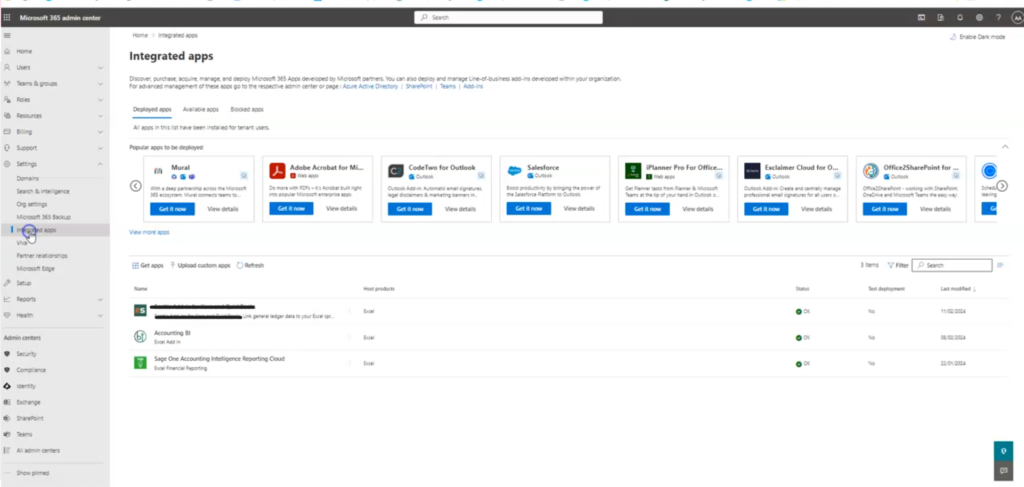
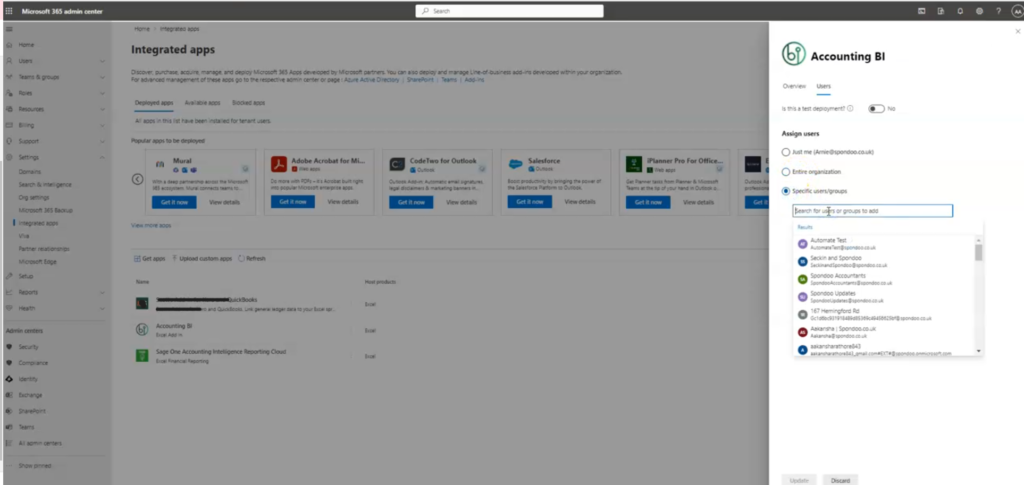
Once they've selected AccountingBi, they will see an option to "Edit Users." This allows them to control who can access the add-in.
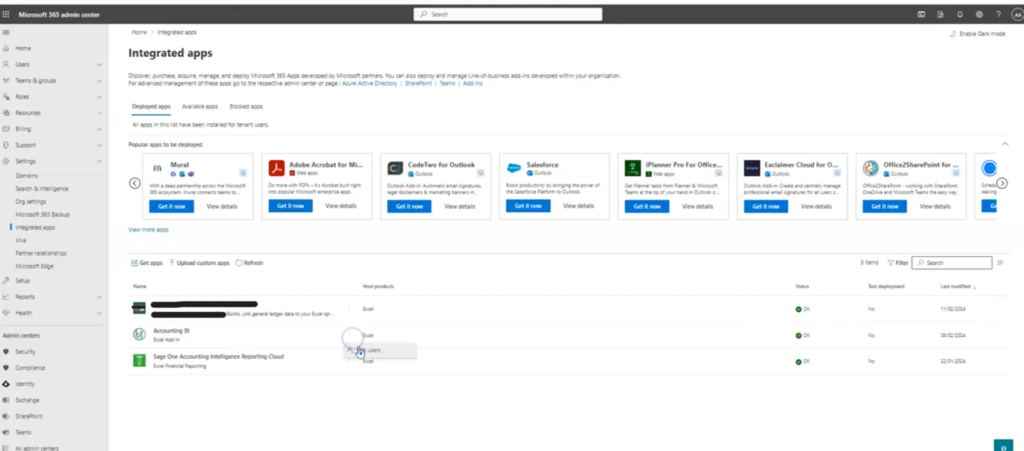
The administrator can choose to assign the add-in to:
How will users access the add-in?
Once the administrator assigns the add-in to the entire organisation, users will be able to access it within their Microsoft 365 Excel application. Here's how:
Users should open their Microsoft 365 account and launch the Excel application.
Within Excel, navigate to the "Home" tab. Click on the "Add-ins" section. Here, they should see the installed "AccountingBi" add-in listed.
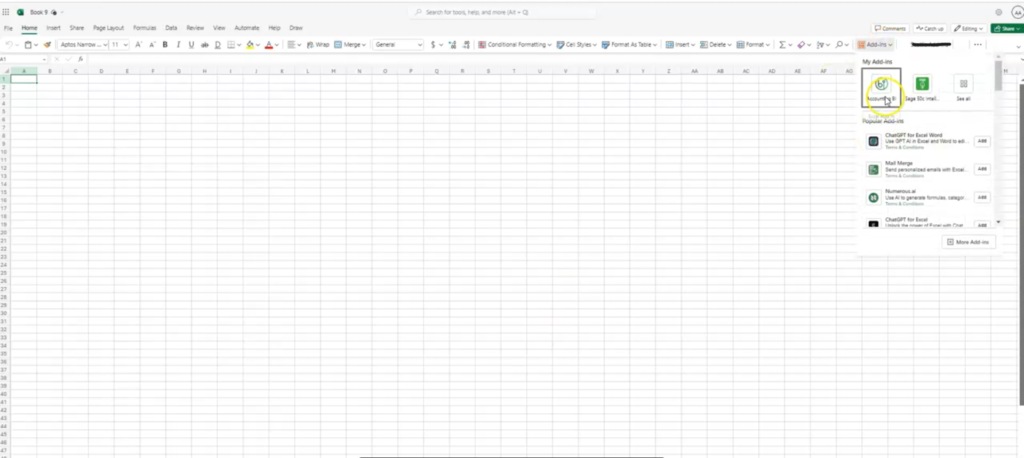
Select the AccountingBi add-in from the list. This will activate the add-in, and you should be able to utilize its functionalities within your Excel spreadsheet.
By following these steps, the AccountingBi Excel Add-in should be ready to use. It will be available within the "Home" tab of your Excel application.

Also, note the troubleshooting issues within Excel desktop.
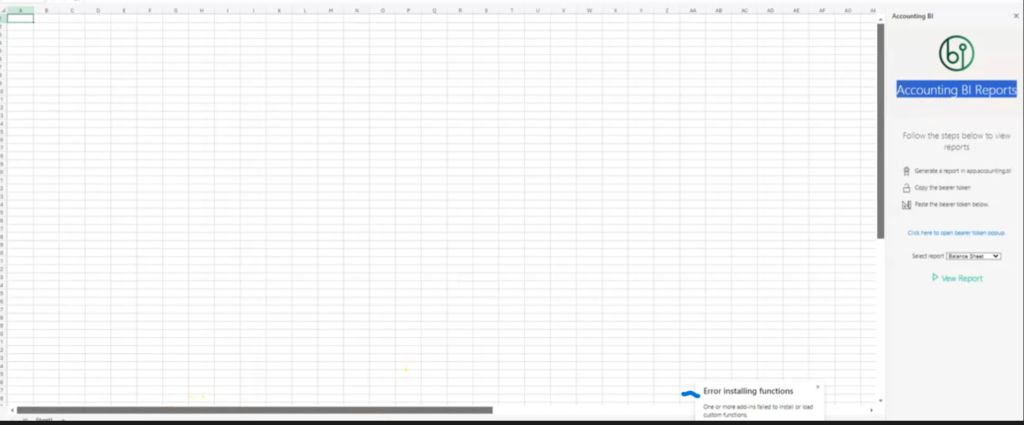
The AccountingBi add-in should appear within excel desktop under the 'Home' tab, it should appear within the 'View Reports' with the AccountingBi logo or within the 'Add-in" section when selected.
If you don't see the AccountingBi add-in after following the above steps, there might be a couple of reasons:
Ensure you're signed in to your Microsoft 365 organisation within the Excel desktop application. This link between your account and the organisation is necessary for the add-in to appear.

In some cases, the Excel desktop application itself might not be linked to your Microsoft 365 organisation. Signing in to your organisation within Excel should resolve this issue.
For further assistance with installation or troubleshooting, you can reach out to the AccountingBi support team.