This guide will walk you through installing a custom connector for Power BI, specifically the Accounting BI connector which allows you to connect your Xero data to Power BI for analysis.
Important Note: This guide assumes you already have a Xero account and an Accounting BI account.
Begin by navigating to the Accounting BI website at https://accounting.bi/.
Refer to this article for detailed instructions on connecting your Xero account to Accounting Bi.
Once logged in, locate the "Downloads" section on the Accounting BI website. This section typically resides in the main navigation menu or within your account settings.
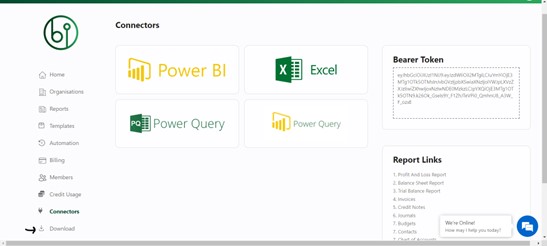
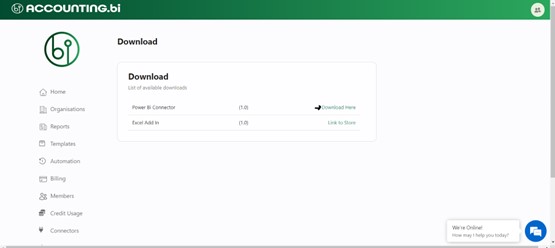
This will download the custom connector file to your computer.
File Format: The downloaded file might be a .pq, .pqx, or .mez file extension, depending on the connector type.
This step requires referencing a separate Accounting BI guide: Connecting Power BI to Accounting BI.
Here's how to proceed:
Follow the instructions provided in "Part A.) PowerBi Custom Connector" on this article to install the custom connector in your Microsoft Power BI Desktop.
By following these steps, you should be able to successfully install the Accounting BI custom connector and connect your Xero data to Power BI Desktop for further analysis and reporting.
Ensure you're using the latest version of Power BI Desktop for optimal compatibility.
If you encounter any difficulties during the installation process, consult the Accounting BI support team.